CapsCode
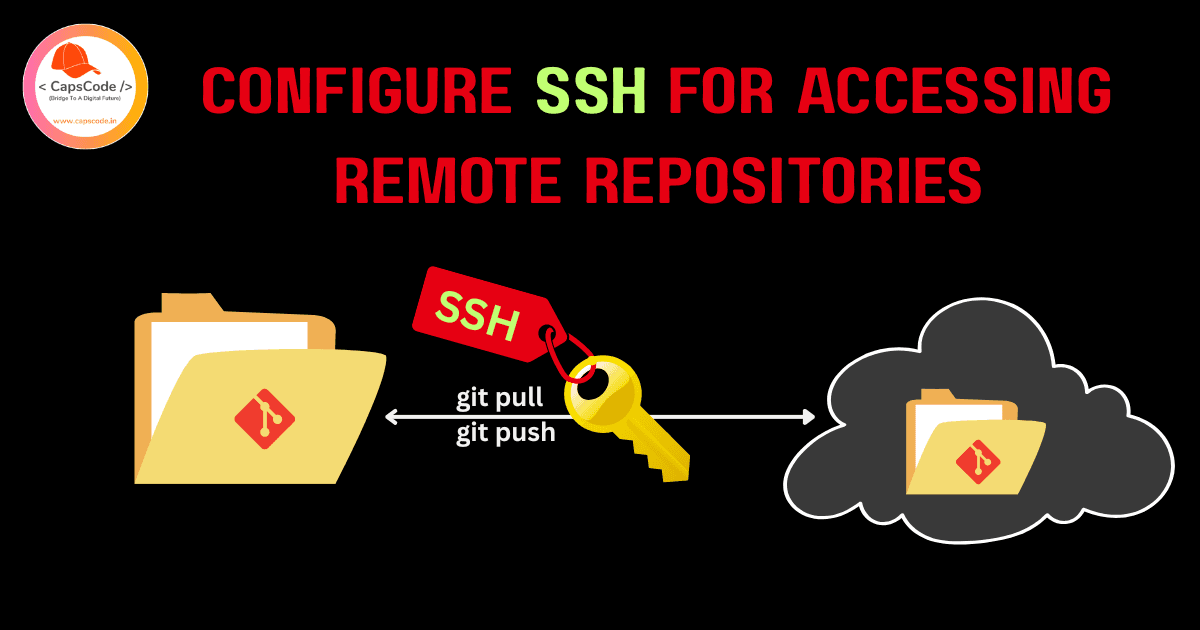
Introduction: SSH vs HTTPS for Remote Repository Authentication
When working with remote repositories, there are two primary ways developers authenticate their local machines with remote repositories:
- HTTPS Authentication
- SSH (Secure Shell) Authentication
NOTE: In this article we will see the steps for GitHub, but for other service providers the steps will be similar.
1. HTTPS Login
With HTTPS, every time you interact with a remote repository (like git push, git pull, or git clone), GitHub asks for your username and personal access token (PAT)/Password.
- Requires credential caching or a credential manager to avoid typing every time
- Simple to set up
- Can be cumbersome if working with multiple accounts.
Learn How to configure multiple Cloud Repositories account in one machine
Modern way to manage multiple cloud repositories from one machine
2. SSH Authentication
SSH uses a public-private key pair for secure, password-less authentication between your machine and GitHub. Once you add your public SSH key to your GitHub account, your computer can securely authenticate with GitHub without needing to enter your username and password or PAT.
- No need to enter credentials for every operation
- More secure, encrypted connection
- Easily manage multiple accounts using SSH config
- Perfect for frequent collaborators or CI/CD setups
Why Choose SSH?
- Secure, encrypted connection
- No repeated password/token prompts
- Clean handling of multiple GitHub accounts
- Works well for automation, CI/CD, and team setups
Let's see the steps to configure the SSH Authentication.
Step 1: Check for Existing SSH Keys
See if you already have any SSH keys:
bashls -al ~/.ssh
If you see files like id_ed25519 and id_ed25519.pub, you might already have one & If you don't want to generate a new key then skip Step 2 & proceed to the next step.
If there is no file/key present or you want to generate a new keys then follow the next steps.
Step 2: Generate a New SSH Key
Use this command to create a new Ed25519 SSH key:
bashssh-keygen -t ed25519 -C "your_email@example.com"
NOTE: This will replace the existing key if any and it will affect the auth if configured any.
After running this command you will see 2 files named id_ed25519 (private key) and id_ed25519.pub (public key) in your .ssh folder.
If you need to keep the existing ones for a different use (another service or project), generate a new key with a custom file name:
bashssh-keygen -t ed25519 -C "your_email@example.com" -f ~/.ssh/custom_key_name
When prompted:
- Enter file location: press
Enterto accept default (/home/some_name/.ssh/id_ed25519) - Enter a passphrase (optional but recommended for extra security)
After running this command you will see 2 files named custom_key_name (private key) and custom_key_name.pub (public key) in your .ssh folder.
For time being, Let's assume we have id_ed25519 and id_ed25519.pub keys in our .ssh folder
Explanation:
-t ed25519: Specifies the key type (Ed25519 is modern, secure, and fast)-C "your_email@example.com": A comment to label the key (usually your GitHub email)-f ~/.ssh/custom_key_name: Defines the full path and filename of both public and private key being created
Step 3: Add the SSH Key to Your SSH Agent
Start the SSH agent:
basheval "$(ssh-agent -s)"
Add your new SSH private key to the agent:
bashssh-add ~/.ssh/id_ed25519
If you have generated custom key in step 2 then add that key as well,
bashssh-add ~/.ssh/custom_key_name
Check if its added:
bashssh-add -l
Optional: If you have multiple keys, manage them using an SSH config file (~/.ssh/config):
bashHost github.com
HostName github.com
User git
IdentityFile ~/.ssh/id_ed25519
IdentitiesOnly yes
Host bitbucket.org
HostName bitbucket.org
User git
IdentityFile ~/.ssh/custom_key_name
IdentitiesOnly yes
NOTE: You don't need to add anything in the config file if there is only 1 key pairs.
Step 4: Add the SSH Public Key to GitHub
Copy the public key:
bashcat ~/.ssh/id_ed25519.pub
Copy the output.
Go to:
- GitHub -> Settings
- SSH and GPG keys
- Click New SSH key
- Paste your public key
- Give it a Title and Save
Step 5: Test the SSH Connection
Verify your SSH connection to GitHub:
bashssh -T git@github.com
If you have multiple keys and have entry in the config file.
bashssh -T git@github.com # uses id_ed25519
ssh -T git@bitbucket.org # uses custom_key_name
NOTE: Here github.com and bitbucket.org is a host alias name (and not the keyname) you define in your ~/.ssh/config file.
On success, you should see:
bashHi your_username! You've successfully authenticated...
Step 6: Configure Git User Info (Optional but Recommended)
Set your Git global identity:
bashgit config --global user.name "Your Name"
git config --global user.email "your_email@example.com"
This identity is used for commit history metadata.
If you have multiple keys and have entry in the config file, then you have to setup git per repo identity
In GitHub repo
bashgit config user.name "github user"
git config user.email "githubemail@exmaple.com"
In BitBucket repo
bashgit config user.name "bitbucket user"
git config user.email "bitbucketemail@bitbucket.com"
Step 7: Set SSH Remote URL for Your Repository
If your repo is already cloned using HTTPS (example: https://github.com/username/repo.git), convert it to SSH:
- Check current remote:
bashgit remote -v
- Change it to SSH:
bashgit remote set-url origin git@github.com:username/repository.git
Replace username and repository with your actual GitHub username and repo name.
NOTE: Make sure that, If you have configured the config file then in place of github.com your host alias name will go.
From now on, when you git push or git pull, Git will use your SSH key for authentication.
Let's see some QnA
Q. What if we have only one key pair, in this case do we need any config file ?
A. No we don't need any config file.
Q. Will ssh -T git@github.com , ssh -T git@bitbucket.org uses same key if there is a single key pairs?
A. If You Have Only One Key (id_ed25519)
Let’s say your ~/.ssh/ folder has:
bashid_ed25519
id_ed25519.pub
And you haven’t set any custom config.
Then:
| Command | What SSH Will Do |
|---|---|
ssh -T git@github.com | Offer the id_ed25519 key for authentication to GitHub |
ssh -T git@bitbucket.org | Offer the same id_ed25519 key for authentication to Bitbucket |
Because — by default — SSH will:
-
Check the SSH agent for loaded keys
-
Then look for default keys in:
~/.ssh/id_rsa~/.ssh/id_ecdsa~/.ssh/id_ed25519- etc.
If it finds only one key, it offers that key for any connection, whether it’s GitHub, Bitbucket, GitLab, or any other SSH service.
If both services (GitHub and Bitbucket) have this same public key registered in their settings, authentication will work fine.
Recap:
- Generate SSH key
- Add to SSH agent
- Add public key to GitHub
- Test SSH connection
- Set or update remote URL
- Optionally configure Git global username and email
Must Read
Learn How to configure multiple Cloud Repositories account in one machine
Modern way to manage multiple cloud repositories from one machine